Repo ↗ · Source README ↗ · Markdown & license bundle
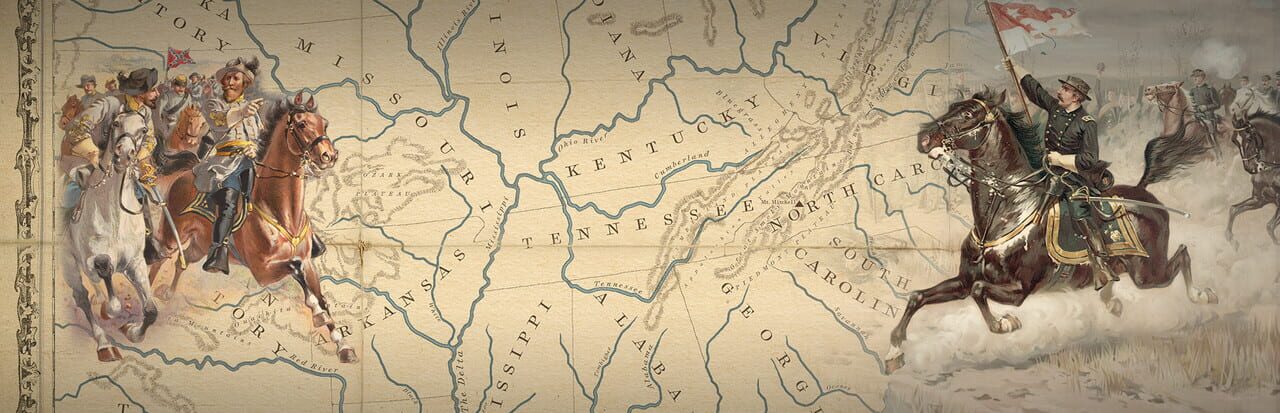
Image reference (original game): Grand Tactician: The Civil War (1861-1865) · original-game artwork, provided by IGDB. Image rights remain with their respective owners. This illustrates the referenced original game, not the actual visuals of this rewrite or mod.
Source maintainer: josha204 · Revision: 391f8c246429 · Catalogued: 2026-10-12
Source license: MIT · LICENSE · Article: Source README (format adapted)
The source README follows, with formatting adapted for this site and images replaced by source links. Feature, completion and testing claims belong to its authors and have not been independently playtested here. The Traditional Chinese translation was prepared with AI assistance.
GT Live: live 2-player campaign for Grand Tactician: The Civil War
GT Live is a mod that turns the Grand Tactician campaign into a live, real-time head-to-head game for two players on two PCs. One player commands the Union and the other the Confederacy. The campaign clock keeps running for both, and either player can pause or change speed. There are no turns.
When your armies meet, you can fight the battle together in the 3D tactical view, each commanding your own army.
Version 0.3.0 is for Grand Tactician 1.142. Both players need version 0.3.0; it can’t connect to older versions.
New in 0.3.0: reinforcements, pontoon bridges, trenches and barricades, and cease fire now work in shared 3D battles. It also fixes a bug in the game itself where a siege-style engagement on the campaign map could end with an error.
What you need
- Both players own Grand Tactician: The Civil War (1861-1865) on Steam.
- Both are on the same game version, which is 1.142 for this release.
- Both either have, or don’t have, the Whiskey & Lemons DLC. The mod checks this when you connect.
- Both have this mod installed, same version.
Installing
- In Steam, right-click Grand Tactician, then choose Manage → Browse local files.
- Copy everything from this folder into that game folder. That’s
winhttp.dll,doorstop_config.ini,.doorstop_version,changelog.txtand theBepInExfolder. Allow it to merge with or overwrite existing files. - Start the game. A small GT Live window appears in the top left. Press F8 to show or hide it.
Upgrading from an older version: copy the folder over again; it replaces BepInEx\plugins\GTLive\GTLive.dll.
To turn the mod off, delete winhttp.dll from the game folder. To remove it completely, also delete doorstop_config.ini, .doorstop_version, changelog.txt and the BepInEx folder.
The mod includes BepInEx 5.4.23.5 (https://github.com/BepInEx/BepInEx, LGPL-2.1). BepInEx is the standard mod loader for Unity games, and the mod runs through it.
Playing
Host (the player whose campaign is used):
- Load or start a campaign as the Union or the Confederacy, the same way as single player.
- In the GT Live window, enter your name and pick how battles are handled (see below), then click Host.
- Give your friend your address (see “Connecting over the internet”).
Guest:
- From the main menu, or from inside any campaign, open the GT Live window with F8.
- Type the host’s address and click Join.
The host’s campaign is sent to the guest (about 3 MB). Both games then load it, which takes about 30-40 seconds. The guest plays the other side.
The session starts paused. Either player can then:
- unpause or change speed with the normal time buttons or hotkeys, which changes the clock for both players;
- give orders to their own armies at any time while the clock runs.
In multiplayer, opening the Finances, Policies or Trade panels does not pause the game. That’s what makes it live. Use the pause button if you need a break.
Battles
The host picks one of two battle settings before hosting:
- Ask both players (the default): when your armies meet, the game pauses for both of you and each player gets the game’s own battle panel: Play battle, Autoresolve, Defend, Withdraw or Retreat, with your own formations to tick. The battle is decided when both have answered.
- Always autoresolve: every battle is resolved on the campaign map without stopping the game.
How the two answers combine
| Your choice and your opponent’s | What happens |
|---|---|
| Either player chose Withdraw or Retreat | That army withdraws or retreats, and there is no battle. |
| Both chose Play battle | A full player-versus-player 3D battle. Each of you commands your own army. |
| One chose Play battle | A 3D battle. That player commands their army; the other army is commanded by the game’s battle AI. Its player watches the battle live and can take command at any time (see below). |
| Both chose Defend | Both armies dig in, and there is no battle. |
| Anything else | The battle is autoresolved on the campaign map. Choosing Defend puts that army in a defensive stance first. |
The autoresolve panel’s Fight button works the same way: whoever presses it commands their army in 3D, and the other army is run by the AI with its player watching.
Battles against the AI-controlled European powers are handled by the game as in single player.
In a 3D battle
- Loading: the host’s game loads the battlefield, then sends it to the guest (about 3-4 MB). Expect about a minute before both of you are on the field.
- Deployment: each commanding player places their own army. Press play when you’re ready. The battle starts when every commanding player is ready, at the faster of the speeds you picked.
- Clock: one shared battle clock, as on the campaign map. Either player can pause or change speed.
- Orders: everything you’d normally do. Move orders still travel by courier with the usual delays.
- Fog of war: each player sees only what their own troops can see. This applies to a player who is watching while the AI commands their army, too.
- Taking command: while the AI commands your army, the GT Live window shows Take command of my army. Press it and the army is yours from that moment, with its current orders. You can’t hand it back to the AI.
- End of day: at nightfall both players see the End of Day and Troops Resupplied prompts. Either player pressing Continue moves the night along for both. Next morning both armies deploy again.
- Reinforcements: formations close enough to join the battle march on at the same time and through the same entry point for both players.
- Engineering: pontoon bridges (built at once with deployment points, or by engineers on the river bank during the battle) and trenches and barricades (built at once in deployment, or dug by infantry during the battle) appear for both players as they’re built. A bridge only becomes passable once it’s finished, for both armies.
- Army orders: Retreat (by day or at night) and Surrender work for both players.
- Cease fire: when one player proposes a cease fire, the other gets Accept cease fire and Decline in the GT Live window. If they accept, the fighting stops until morning for both. If the other army is commanded by the AI (its player is watching), the AI agrees, as in single player.
- The end: when the battle is over, both players see the result from their own side. The host leaves the battlefield the normal way. Both games then return to the campaign with the battle’s result, which means one more 30-40 second load.
The host’s game runs the battle; the guest’s game shows the same battle and sends its orders to the host. On the guest’s screen, moving units can be a few paces off from where the host’s game has them. They’re corrected smoothly as they march, and immediately if the gap grows.
Saving and continuing later
The host saves the way they normally would, and autosaves work as usual. To continue a multiplayer campaign another day, the host loads the save and clicks Host again, and the guest joins.
Each time a full sync happens, the mod also keeps a save called “GTLive” in the host’s save list. That save holds the state as of the last sync.
Saving during a 3D battle isn’t supported in multiplayer. Finish the battle first.
Resync
Resync guest (host) and Ask for resync (guest) send the whole campaign again, which takes about 30-40 seconds of loading. The mod also resyncs by itself if the two games stop agreeing on which armies exist. Normally you never need this button. It’s hidden during 3D battles.
Connecting over the internet
The host listens on TCP port 27455. You can change the port in the GT Live window, or in BepInEx\config\gtlive.multiplayer.cfg.
- Same home network: the guest enters the host PC’s local IP. Run
ipconfigon the host to find it; it usually looks like192.168.x.x. Allow the game through Windows Firewall when Windows asks. - Over the internet, easiest option: both players install a free virtual-LAN tool such as Tailscale, ZeroTier or Radmin VPN and join the same network. The guest then joins the host’s address on that network, which looks like
100.x.x.xin Tailscale. - Over the internet with port forwarding: forward TCP 27455 on the host’s router to the host PC. The guest joins the host’s public IP.
3D battles send more data than the campaign map, mostly from the host to the guest, and more the more units are moving. Any normal broadband connection should be fine, but this hasn’t been tested over the internet yet.
What stays in sync live
- Clock: pause, speed, and the date and time. Each PC follows the host’s clock.
- Army orders: movement and waypoints, rail, sea and river transport, stances, cavalry orders and fleet orders. Both players can give orders at the same time.
- Unit strength: men, sick, wounded and captured, morale and experience. This is how battle casualties and attrition reach the guest.
- Order of battle:
- recruiting brigades and regiments;
- raising divisions, corps and armies;
- drag-and-drop moves in the order of battle;
- detaching units;
- disbanding units and units destroyed in battle.
- Commanders: assignments, promotions, casualties, and newly created commanders.
- Economy and politics:
- treasury and debt;
- taxes and subsidies;
- national morale;
- recruits and state support;
- policy research;
- projects;
- weapon stocks, weapon orders and weapon upgrades;
- transport capacity.
- Map:
- town and industry ownership;
- supply depots, forts, companies and other buildings (construction, ownership and level);
- railroad construction;
- ships, including shipbuilding and moving ships between fleets and harbours;
- weather and snow;
- battle markers and their results.
- 3D battles:
- unit positions, facing, formations and routes;
- casualties, morale, fatigue and ammunition;
- routs and rallies;
- combat behaviour, AI stances, detachments, mounting;
- targets, charges and occupying buildings;
- deployment, end of day, the night and the next morning;
- reinforcements arriving during the battle;
- pontoon bridges, trenches and barricades;
- objectives, weather, retreats, surrenders, cease fires and the outcome.
Each player keeps their own auto-manage settings (finances, construction, policies and so on). The host runs auto-management for both sides, each with its owner’s settings.
Known limitations
- Two players only, one per side. The European powers stay under AI control.
- The host’s game is the authority. If the two games disagree, the host’s version wins. On a slow connection the guest’s actions take a moment to “stick”.
- In 3D battles, couriers you see riding are your own. The other player’s couriers aren’t shown.
- Rare actions that the live sync doesn’t cover may need a manual Resync. The automatic safety net usually catches these. Examples include splitting an army into an army group, and some uncommon order-of-battle actions.
- Whiskey & Lemons career campaigns can’t be played in multiplayer.
- After a session ends, the campaign that’s still loaded has no AI for the other side. Load a save to keep playing single-player.
Troubleshooting
- Nothing happens when I click Join. Check the address and port, make sure the host clicked Host, and allow the game through Windows Firewall on the host. Over the internet, use a virtual-LAN tool (see above).
- “Version mismatch”. Both players need the same game version and the same DLC, and both need this exact mod version.
- The two games look different. Click Resync (on the campaign map).
- “You’re spectating: the AI commands your army.” You didn’t choose Play battle for this battle. Press Take command of my army in the GT Live window (F8) to take over.
- Logs are in
BepInEx\LogOutput.login the game folder. Include that file when you report a problem.
Source code
The mod’s complete source code is in src/GTLive. It’s C# for BepInEx 5 and Harmony. It contains only the mod’s own code: the game’s code isn’t included, and the mod is compiled against your own copy of the game.
The ready-to-install mod is on the Releases page.
Building it yourself
You need:
- the .NET SDK, version 6 or newer (dotnet.microsoft.com);
- Grand Tactician installed;
- BepInEx in the game folder. Install the mod once from the release zip; the build uses BepInEx’s files from there.
Then, in the src/GTLive folder:
dotnet build -c Release
The mod is built to src/GTLive/bin/Release/GTLive.dll. Copy it into BepInEx\plugins\GTLive\ in the game folder, replacing the one from the release. Add -p:Deploy=true to have the build copy it there for you.
If your game isn’t in the default Steam location, give the build its folder:
dotnet build -c Release -p:GameDir="D:\SteamLibrary\steamapps\common\Grand Tactician The Civil War (1861-1865)"
A DLL you build yourself won’t be byte-for-byte identical to the released one, because build paths differ, but it works the same.
What’s where
Plugin.cs: startup and settings.Session.csandNet/: hosting, joining, the version check and sending the campaign.Sync/: keeping the campaign map in step (clock, orders, unit strength, economy, order of battle, commanders, towns, buildings, railroads, ships, weather).Battle/: the battle prompt and shared 3D battles.Patches/: the changes the mod makes inside the game (Harmony patches).Overlay.cs: the GT Live window.Lab.cs: the test harness used during development. It only switches on when the game is started with the--gtlive-lablaunch option.
License and provenance
The README and its translation retain MIT terms. Changes comprise translation, links and formatting. Editable Markdown, the original README, LICENSE and NOTICE files are included in the linked bundle. This grants no rights to the original games, their assets or trademarks.
LICENSE
MIT License

Copyright (c) 2026 Joshua Aycock

Permission is hereby granted, free of charge, to any person obtaining a copy
of this software and associated documentation files (the "Software"), to deal
in the Software without restriction, including without limitation the rights
to use, copy, modify, merge, publish, distribute, sublicense, and/or sell
copies of the Software, and to permit persons to whom the Software is
furnished to do so, subject to the following conditions:

The above copyright notice and this permission notice shall be included in all
copies or substantial portions of the Software.

THE SOFTWARE IS PROVIDED "AS IS", WITHOUT WARRANTY OF ANY KIND, EXPRESS OR
IMPLIED, INCLUDING BUT NOT LIMITED TO THE WARRANTIES OF MERCHANTABILITY,
FITNESS FOR A PARTICULAR PURPOSE AND NONINFRINGEMENT. IN NO EVENT SHALL THE
AUTHORS OR COPYRIGHT HOLDERS BE LIABLE FOR ANY CLAIM, DAMAGES OR OTHER
LIABILITY, WHETHER IN AN ACTION OF CONTRACT, TORT OR OTHERWISE, ARISING FROM,
OUT OF OR IN CONNECTION WITH THE SOFTWARE OR THE USE OR OTHER DEALINGS IN THE
SOFTWARE.
Comments
…